
Create Branded Images and Video with Adomo
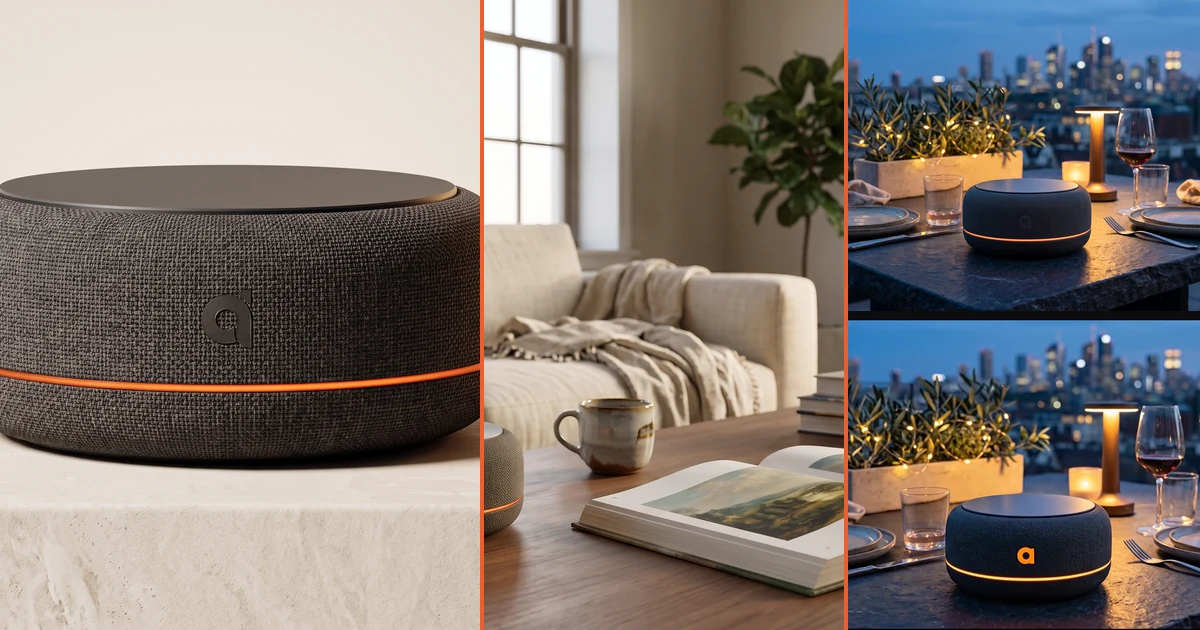
Give Adomo a product photo, your brand rules, and a campaign brief. From there, you can create studio images, place the product in new settings, storyboard a launch film, direct and revise motion, render the final video, and prepare versions for every channel.
All of that work stays in one Adomo conversation. Your references, instructions, and approved assets move from one stage to the next, so the campaign keeps its identity as it grows.
The example below follows a fictional smart speaker called Adomo Relay. Its charcoal fabric, low rounded body, black top, orange light ring, and Adomo mark need to remain consistent from the first product shot through the final video.
Create a launch campaign for Adomo Relay. Start with a clean product image, place it in a warm apartment and at a rooftop dinner, then turn the rooftop scene into a cinematic video. Keep the product and brand consistent.
Adomo can turn that brief into a complete AI media pipeline:
product photos + brand rules
  → campaign images
  → lifestyle placements
  → storyboard
  → motion draft and revisions
  → cinematic final and extension
  → cuts, captions, crops, and exports
Create the product anchor
Start by uploading the product angles, logo, packaging, colors, and any details that cannot change. Adomo uses those references to create a clean anchor image for the campaign.
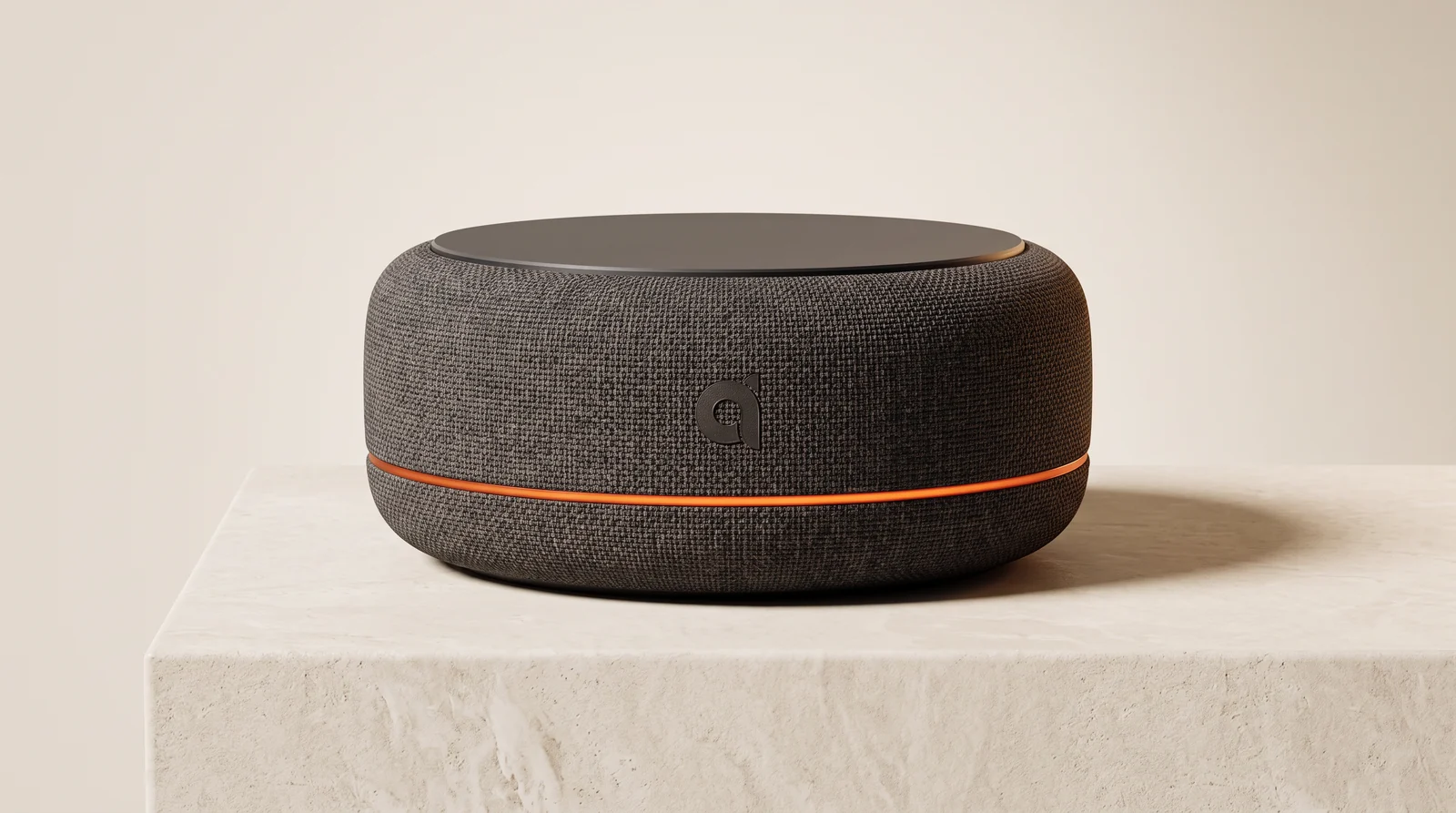
A clean product anchor gives every later image and video the same visual source.
You can refine the shot in plain language:
- make the background warmer;
- move the camera lower;
- keep the fabric texture and orange ring exact;
- leave more space on the right for campaign copy;
- create landscape, vertical, and square versions.
Once the product looks right, approve it. Adomo carries that image and its brand constraints into the rest of the campaign.
Place your product in new scenes
Ask Adomo to blend the approved product into existing photography or create a new setting around it. The scene can change while the product stays recognizable.
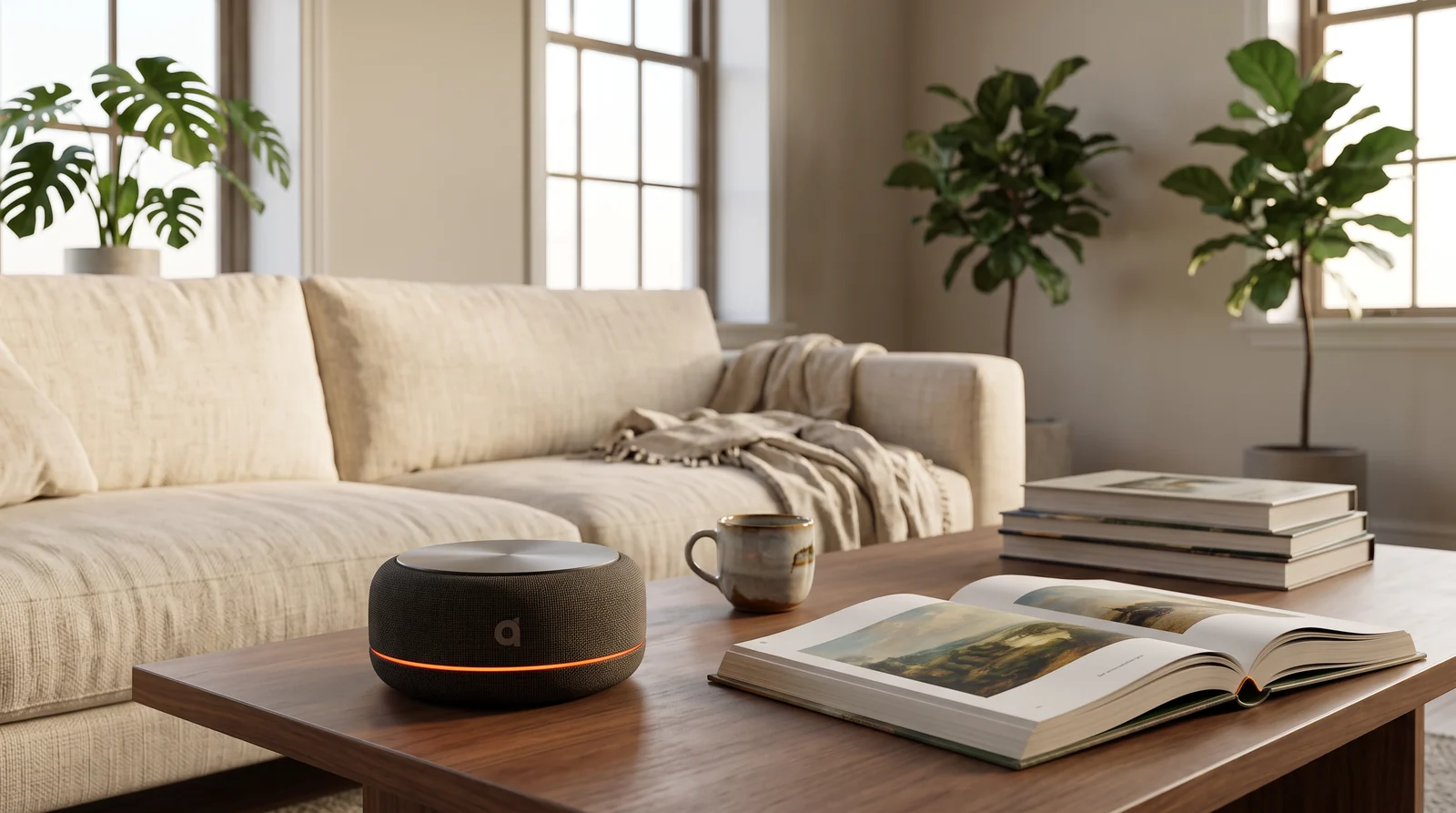
A warm apartment placement built from the approved Adomo Relay reference.
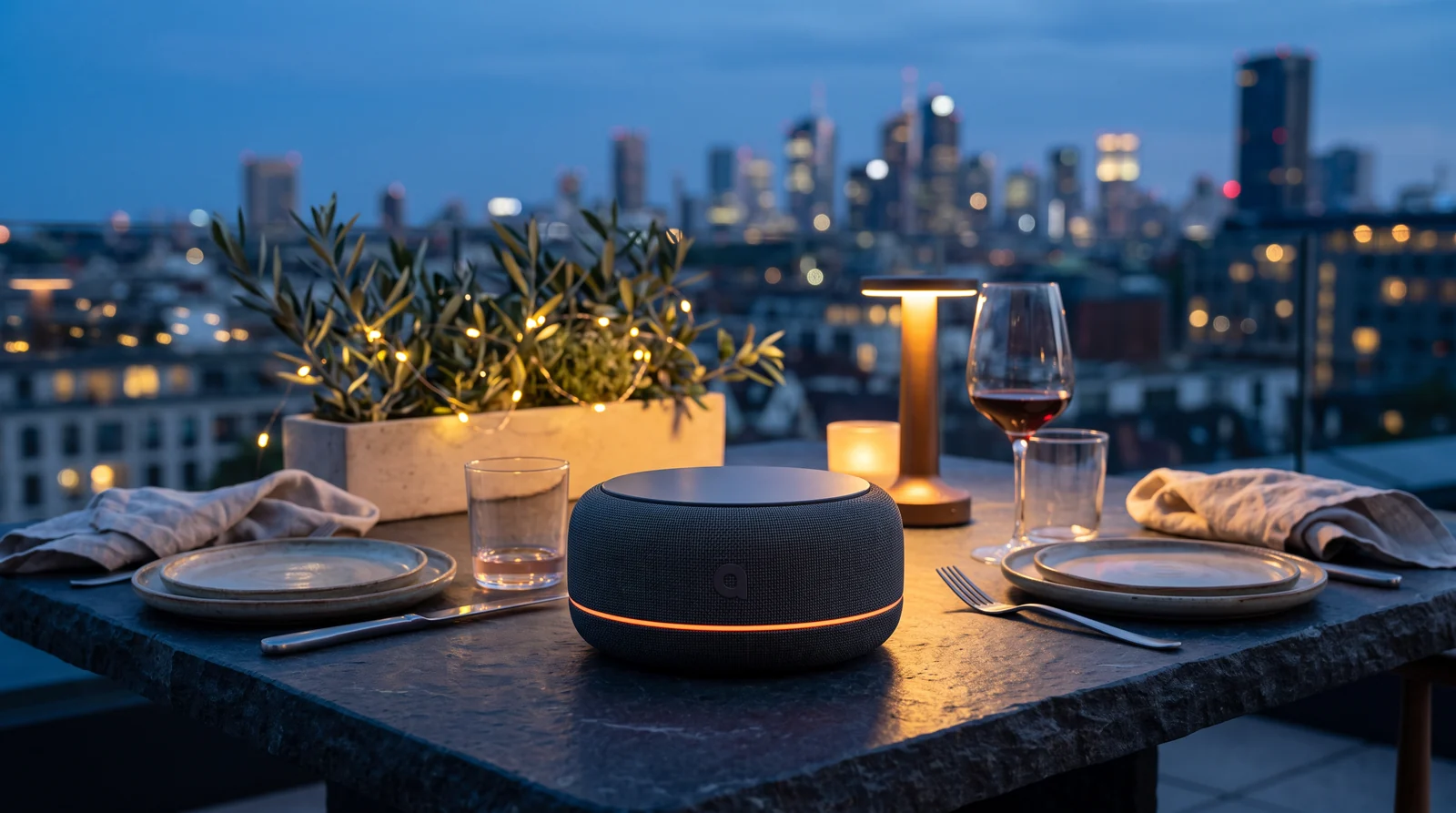
The same product restaged for a blue-hour rooftop campaign.
A team can explore locations, seasons, moods, retail environments, and regional campaigns without rebuilding the product from scratch each time. You can also bring a real room, event photo, or customer image and ask Adomo to place the product within it.
Storyboard the campaign before rendering video
Describe the story you want and let Adomo break it into shots. Each frame can include the setting, camera direction, timing, and role it plays in the final piece.
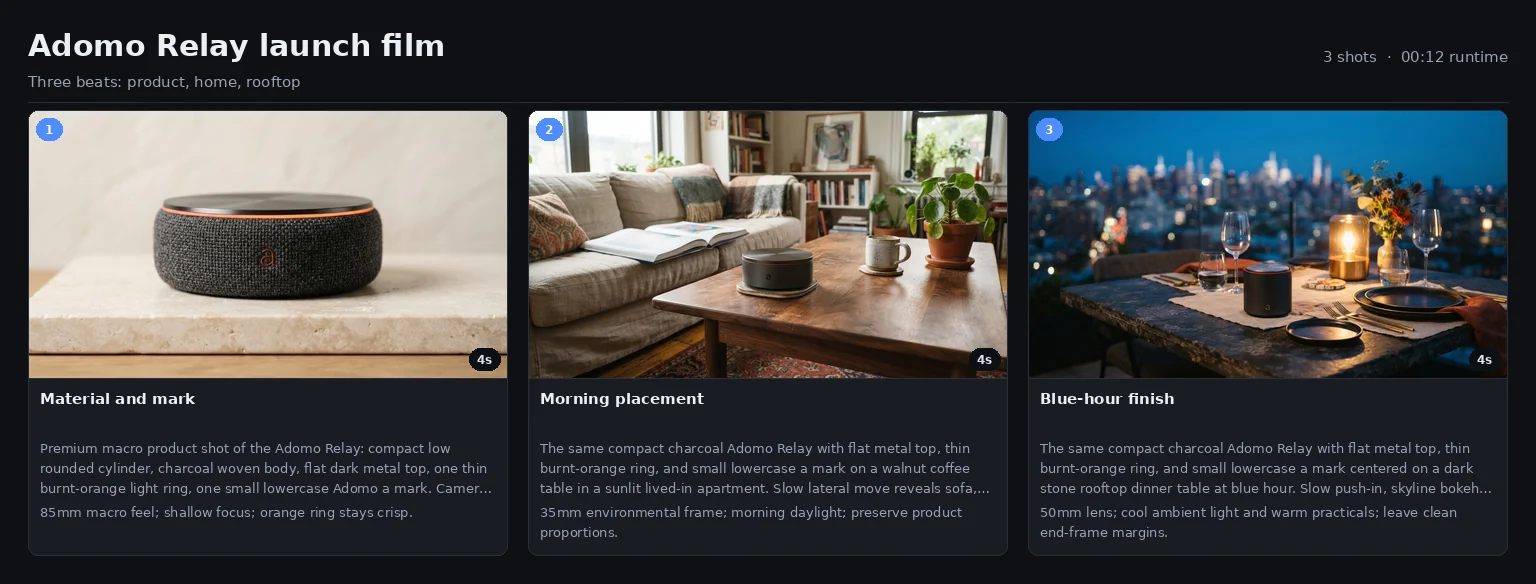
A three-shot storyboard for the product reveal, apartment placement, and rooftop final.
Review the sequence while changes are still easy. Ask Adomo to reorder shots, replace a location, shorten the opening, or leave a clean final frame for approved copy. Once the board reads well, those decisions carry into motion.
Direct video in plain language
Adomo can use Gemini Omni to turn an approved campaign image into a fast video draft. Describe camera movement, subject motion, light, weather, pacing, and mood in the same conversation where you created the still.
A fast motion draft created from the approved rooftop image.
Revisions work like creative direction:
Slow the push-in. Keep the product fixed. Warm the table light and make the city feel slightly later in the evening.
Adomo manages the current clip and its history while you describe the change. You can try another direction, compare versions, and return to the last approved result without rebuilding the shot.
Finish and extend with Veo
Once the direction is approved, ask Adomo for a final render with Veo 3.1. The final can begin from the same branded frame, preserve the chosen composition, and use more controlled camera and production settings.
The approved rooftop scene rendered as a cinematic Veo final.
Ask Adomo to continue an approved shot when the campaign needs more time. The extension picks up from the end of the video and carries the scene and action forward.
The same shot extended into an 11-second product video.
Use the right model for each part of the job
Adomo can combine several media models and editing tools inside one workflow. You describe the result and any constraints. Adomo handles the handoff between stages.
| What you want to do | How Adomo handles it |
|---|---|
| Create or restage a branded product image | Gemini image models blend product and brand references into the scene |
| Explore motion and revise a shot conversationally | Gemini Omni creates a fast draft and follows natural-language changes |
| Render or extend an approved cinematic shot | Veo creates the final video and continues approved footage |
| Trim, join, caption, crop, and export | Editing tools make exact changes without redrawing accepted footage |
The model can change between steps. Your product references, brand rules, and approvals stay with the campaign.
Turn one campaign into every format
The finished shot is still a source asset. Ask Adomo to cut a 15-second social version, pull a six-second bumper, add approved captions, mix a supplied music track, or create landscape, vertical, and square exports.
The same pipeline can produce:
- launch films and paid social creative;
- e-commerce product images and feature clips;
- localized campaigns with new copy, captions, and voice;
- event, retail, and seasonal product placements;
- edits that combine existing footage with generated shots;
- internal videos, explainers, and training content.
Set approval points wherever your team needs them. Creative can approve the look before final video. Legal can approve claims and end cards before export. Brand can lock product details once and reuse them across the campaign.
Frequently asked questions
Can Adomo work with our real product photography?
Yes. Upload clean product angles and the brand material Adomo should preserve. You can use those references to create new product images, blend the product into other scenes, or guide supported video generation.
Can we edit our existing images and video?
Yes. Bring existing media into the same workflow. Ask Adomo to change a scene, create a new shot from a reference, trim footage, join clips, add captions, replace audio, or export new formats.
Do we have to choose between Gemini Omni and Veo?
No. Adomo can use Gemini Omni for fast drafts and conversational changes, then use Veo for the approved final or an extended shot. You can request a model when you want one, or let Adomo choose based on the job.
Can Adomo keep the product and brand consistent?
Adomo carries the approved references and constraints through the workflow. Teams can also add review gates for geometry, logos, packaging text, claims, people, and final exports.
Do we need to manage separate media tools and files?
Adomo coordinates the models, media, revisions, and outputs inside the workflow. Your team works from the brief and approves the creative instead of moving files between separate generation tools.
Bring a product photo, your brand rules, and an idea for the campaign. Start free and ask Adomo to create the first product image.